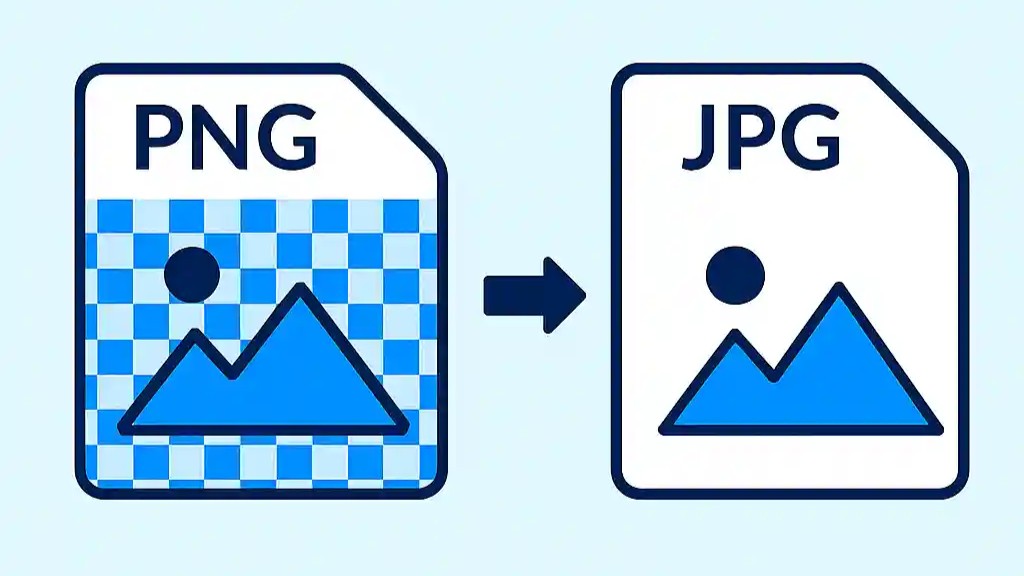
How to Change a Transparent PNG to a JPG with a White Background (Instantly)
Created on 18 September, 2025 • Image Manipulation Tools • 318 views • 2 minutes read
Need to convert a PNG with a transparent background to a JPG with a solid white background? Learn the fastest way to do it online without Photoshop or complex software.
You have the perfect logo or icon as a PNG file. It's clean, crisp, and has a transparent background, making it versatile for placing over different designs. But now, you need to upload it to a platform that doesn't handle transparency well, or you simply need it in a standard JPG format with a classic white background.
If you’ve ever tried a basic conversion, you might have been frustrated to find your transparent areas turned an ugly, solid black. So, how do you change a transparent PNG to a JPG with a white background correctly?
The answer is simpler than you think, and it doesn't require opening complex programs like Adobe Photoshop.
The Problem: PNG Transparency vs. the JPG Format
The issue lies in the fundamental difference between these two popular image formats:
- PNG (Portable Network Graphics): This format is a champion of web graphics precisely because it supports an "alpha channel," which is what allows for true transparency.
- JPG (Joint Photographic Experts Group): This format is fantastic for photographs due to its excellent compression, but it does not support transparency. Every pixel in a JPG must have a color.
When a converter doesn't know what color to fill the transparent pixels with, it often defaults to black. This is why you need a tool specifically designed to handle this conversion gracefully.
The Best Solution: A Smart Online Converter
Instead of navigating through layers and export settings in bulky software, you can use a tool built for this exact task. For a quick, reliable, and perfect result every time, we recommend the PNG to JPG Converter by Shortus.xyz.
Try the free tool here: https://shortus.xyz/tools/png-to-jpg
This online tool is specifically programmed to solve the transparency problem. When it detects a PNG with transparent areas, it automatically fills those areas with a solid white background before converting the file to a high-quality JPG. It's the one-click solution you've been looking for.
How to Convert Your PNG to a JPG with a White Background
It takes just a few seconds to get the exact file you need.
- Open the Converter: Navigate to the Shortus.xyz PNG to JPG tool.
- Upload Your File: Click the "Upload" button or simply drag and drop your transparent PNG file directly onto the page.
- Convert: The tool instantly processes your file. It intelligently replaces the transparent background with a solid white one.
- Download: Click the "Download" button to save your new JPG file.
[Image showing a side-by-side comparison: a logo with a transparent checkerboard background on the left, and the same logo as a JPG with a clean white background on the right.]
That’s it! No black backgrounds, no complicated steps. Just a perfect JPG ready for your website, social media profile, or document.
When Would You Need This?
This conversion is incredibly useful in many common scenarios:
- Social Media Profiles: Many platforms require a standard JPG for profile pictures.
- E-commerce Sites: Creating uniform product images with a consistent white background.
- Email Signatures: Ensuring your logo displays correctly across all email clients.
- Online Forms: Uploading an image to a system that only accepts JPG files.
Next time you need to make a quick conversion, skip the hassle. Bookmark the Shortus.xyz PNG to JPG converter and get the job done right in seconds.