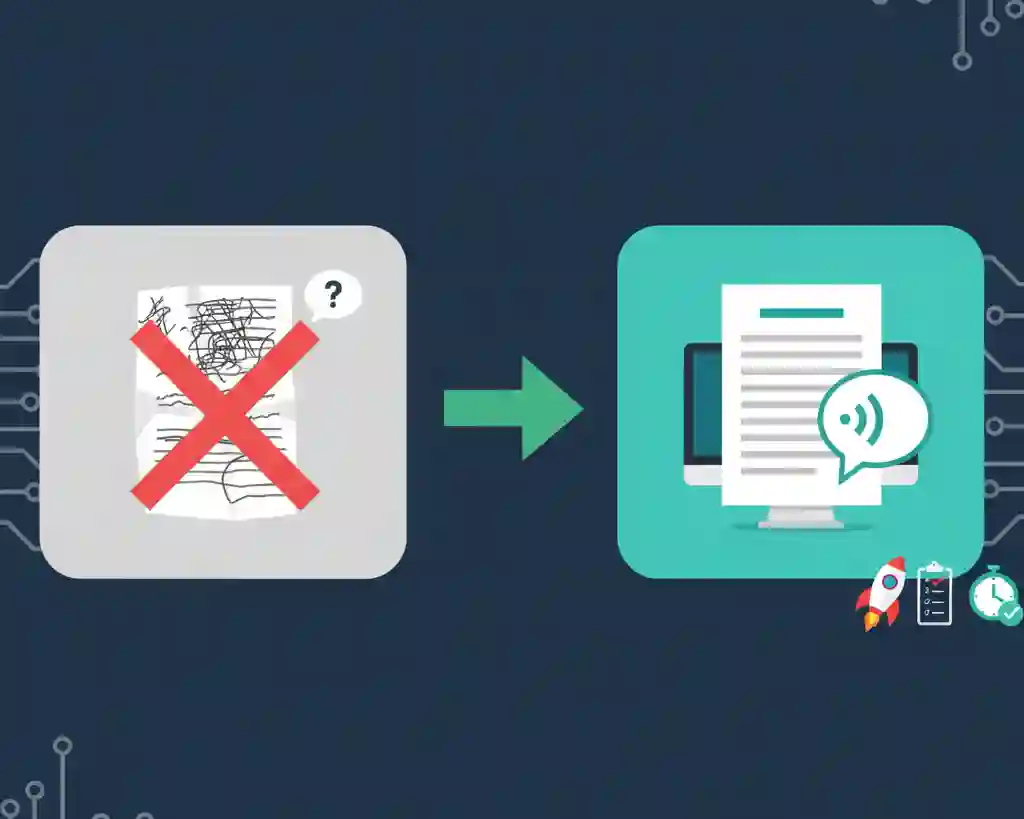
How to Make Your Computer Read an Article Aloud: A Guide to Text-to-Speech
Created on 24 September, 2025 • Text Tools • 234 views • 2 minutes read
Whether you want to multitask while catching up on the news, rest your eyes after a long day, or you find listening helps you absorb information better, having your computer read text aloud is an incredibly useful feature. This capability is powered by a t
What is Text-to-Speech (TTS) Technology?
Text-to-Speech is a form of assistive technology that converts written digital text into spoken voice output. Modern TTS systems use sophisticated algorithms to analyze text, interpret punctuation, and synthesize a voice that sounds increasingly natural and human-like. What was once a robotic-sounding novelty has become a seamless and high-quality tool for everyday use.
Method 1: Use Your Operating System’s Built-in Reader
The easiest way to get started is by using the tools that are already built into your computer. Both Windows and macOS have powerful, system-wide screen readers.
On Windows (using Narrator):
Windows has a screen reader called Narrator. While it's a full-featured accessibility tool, you can use it for simple reading.
- Turn it on: Press the Windows logo key + Ctrl + Enter together to start Narrator.
- Select Text: Open the article or document and place your cursor where you want it to start reading.
- Read: Narrator will begin reading the text on the page. You can use the Caps Lock + R command to have it read a selection of text.
- Turn it off: Press Windows logo key + Ctrl + Enter again to stop Narrator.
On macOS (using Spoken Content):
Apple's Spoken Content feature is excellent for reading text aloud on demand.
- Enable it: Go to System Settings > Accessibility > Spoken Content and make sure the "Speak selection" option is checked. You can also set a custom keyboard shortcut here.
- Use it: Highlight any text on your screen—in a web article, a document, or an email—and press the keyboard shortcut (the default is usually Option + Esc). Your Mac will immediately start reading the selected text aloud.
Method 2: Use a Simple Online Text-to-Speech Tool
If you just want to quickly convert a specific block of text to audio without turning on system-wide features, an online tool is the perfect solution.
This method is great because it works on any computer (including public ones or Chromebooks) and requires no setup.
- Copy the Text: Go to your article and copy the text you want to hear.
- Visit an Online Tool: Navigate to a website like the Text to Speech tool from Shortus.xyz.
- Paste and Convert: Paste your copied text into the text box. You can often select different voices and speeds.
- Listen: Click the "Convert" or "Play" button to listen to the generated audio. You can often download the audio as an MP3 file as well.
Method 3: Use a Web Browser Extension
For those who frequently read articles online, a browser extension is perhaps the most convenient option. These add-ons integrate directly into your browser and can read the content of a webpage with a single click.
Popular extensions like "Read Aloud" are available for Chrome, Firefox, and Edge. Once installed, you simply navigate to an article and click the extension's icon in your toolbar to start and stop the reading.
By using any of these methods, you can transform any written article into an audio experience, giving you the flexibility to learn and consume information in a whole new way.